
How to Add Employees
Before you start:
Set up your roles first so you can assign one to the new employee. See How to Add Employee Roles.
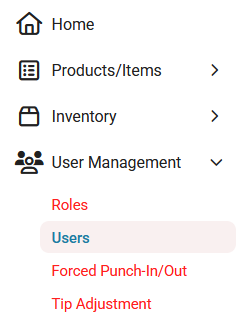
1. Go to User Management → Users.
2. Click + New User in the top right.

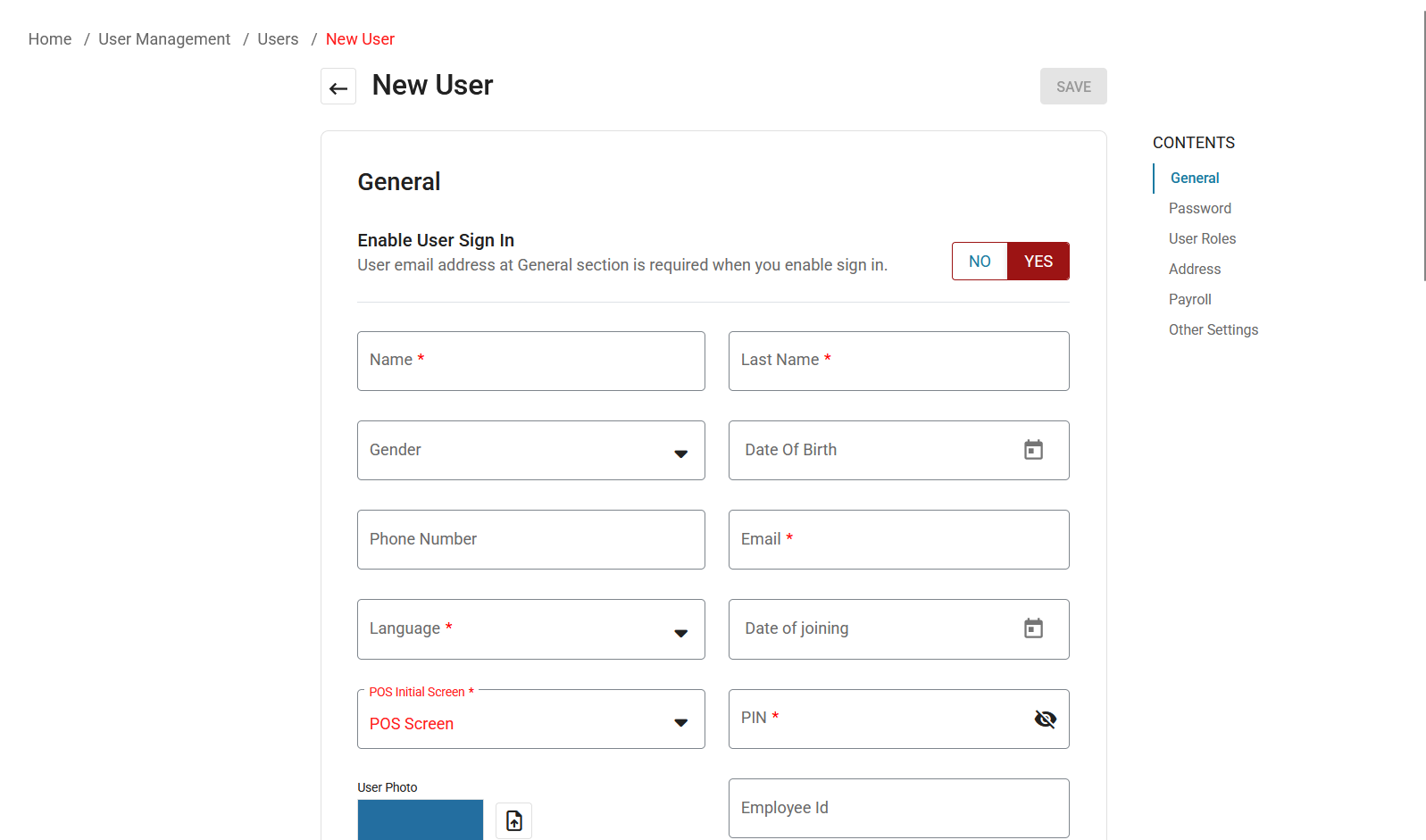
3. Fill in every field marked with a red *. All other fields are optional.
💡Have in mind:
Enable User Sign In is for users that will have login access to the back office. An email and password will be required if this is on. If a user will not have access to the back office, toggle this option to No.
PINs are unique and cannot be identical nor repeated across different users.
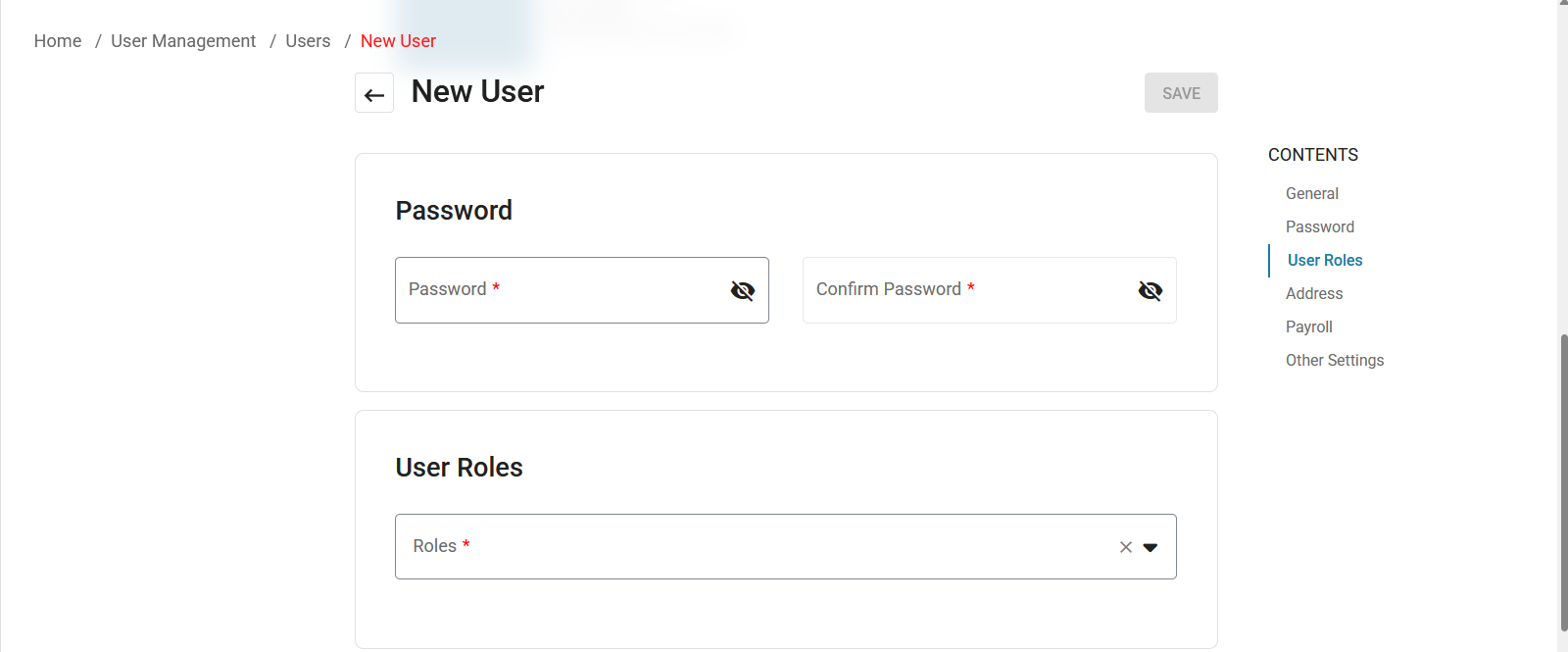
4. For back office access, Enable User Sign In needs to be toggled On. Create a password for their email address (mandatory in Step 3). If this option is off, this section will not be visible.
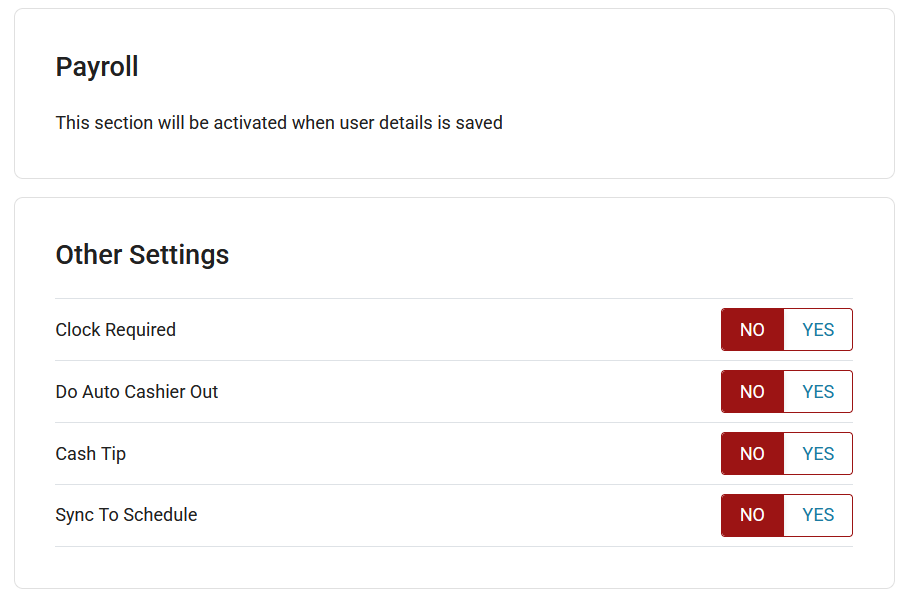
5. Toggle Other Settings to enable or disable these settings for the user. Payroll settings will be activated when the user details are saved, and you will be able to edit afterwards.
6. Click the green Save button at the top right corner. You'll see a confirmation that the employee was saved.
💡Good to know:
If you forget your password to access your back office, you can contact us to assist you.